
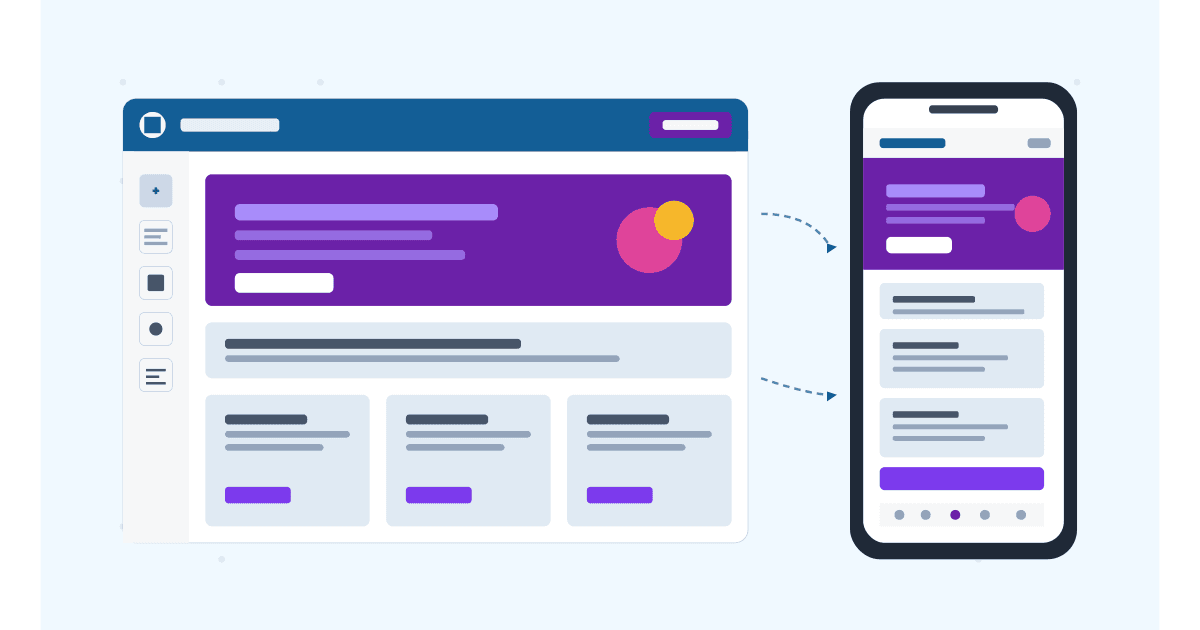
You finished the page in the WordPress editor. It looked great. You opened it on your phone, and now the headline is colliding with the logo, the call-to-action button has disappeared below the fold, and the contact form has spilled past the screen edge.
The mobile view in WordPress is one of those things that seems automatic until it suddenly is not. WordPress will not make a broken site look good on mobile just because the theme says "responsive." You have to verify, and the good news is that WordPress gives you at least six different ways to do it, depending on which editor and page builder you use.
This guide walks through every place mobile view exists in WordPress, when each one is useful, and the external tools that catch the bugs in-editor previews miss. By the end, you will have a workflow that takes 2 minutes per page and catches 95% of mobile issues before they go live.
Here is what you will learn:
- The 6 places mobile view lives in WordPress (Customizer, Gutenberg, Elementor, Divi, Beaver Builder, external tools)
- The plugins that quietly break mobile responsiveness
- A 10-item WordPress-specific mobile QA checklist
- How to optimize WordPress for mobile-first indexing in 2026
Skip the setup. Try MobileViewer.io free.
20 free tests, no signup required. Test on 50+ real device frames in one click.
Try MobileViewer.io free →Why mobile view matters specifically for WordPress sites
WordPress powers more than 40% of the web, and a huge chunk of those sites run on themes and plugin stacks that were never deeply tested on mobile. A theme demo looks great on the developer's desktop. A page builder previews look fine in the editor. Then a slider plugin, a popup plugin, and a sticky-header plugin stack on top of each other, and the mobile experience falls apart.
Beyond visual issues, Google has been ranking WordPress sites mobile-first since 2024. The mobile version of your site is the version Google indexes. If a plugin adds a heavy script that only loads on mobile, your Core Web Vitals suffer. If your theme hides internal links behind a hamburger menu, those links may not pass link equity the same way.
WordPress also gives users an unusual amount of control, which is both the power and the trap. You can edit a page in Gutenberg, then customize it in Elementor, then add a header from a theme builder, then install an opt-in popup. Each layer has its own mobile preview. Each one can break. Checking mobile in only one place misses the issues introduced by the others.
The teams that win at WordPress mobile do two things. They standardize on one page builder per site (no mixing Elementor and Divi on the same page). They check the live URL with an external tool like MobileViewer.io before publishing, because that is the only view that sees all the layers stacked together.
Method 1: Mobile preview in the WordPress Customizer
The Customizer has been the default mobile preview path in WordPress since version 4.5 in 2016. It still works in 2026, and it is the first place most users check.
Steps:
- Log in as an admin.
- Go to Appearance > Customize.
- At the bottom-left of the Customizer, you will see three small icons: desktop, tablet, and phone.
- Click the phone icon. The preview pane on the right resizes to roughly 360 px wide.
- Make any changes you want (typography, colors, layout) and Save.
Strengths: Native, no plugin required, works with any theme, lets you preview Customizer-level changes in real time.
Weaknesses: The Customizer preview is iframe-based and only resizes the viewport. It does not switch the user agent or simulate touch. Themes that use the User-Agent string to swap layouts will show the desktop layout in the Customizer phone preview, which is misleading.
Some themes also block their full design from showing inside the Customizer iframe for performance reasons. If you see a stripped-down version of your page in the phone preview, that is the iframe's limitation, not the actual mobile rendering. Always verify with a method below.
Method 2: Mobile preview in Gutenberg (the Block Editor)
The Block Editor introduced its own mobile preview in WordPress 5.5 (2020) and has improved it steadily.
Steps:
- Open the page or post in the editor.
- At the top-right, click the Preview button (the eye icon).
- Choose Mobile from the dropdown.
- The editor canvas resizes to a phone-width preview.
In Full Site Editing themes (Twenty Twenty-Three onward), you can also use per-block visibility controls. Select any block, open the Block Inspector on the right, and look for a "Visibility" or "Hide on" section. Some blocks (especially Group, Column, and Cover) let you hide on mobile or hide on desktop.
The Block Editor preview is closer to reality than the Customizer preview because it renders the actual block CSS. However, it still does not switch the user agent or simulate touch, and it does not load front-end plugins. A popup that fires on the live site will not appear in the editor preview.
For sites that use Full Site Editing, also check the Site Editor's mobile preview (Appearance > Editor > device toggle at the top). This is critical for header and footer layouts that only break at the global template level.
Method 3: Elementor's responsive mode
Elementor remains the most popular WordPress page builder in 2026, with over 5 million active installs. Its responsive mode is one of the most thorough in the WordPress ecosystem.
Steps:
- Open a page in Elementor.
- At the bottom-left of the editor, click the device icon.
- Choose Desktop, Tablet, Mobile (and in Pro, Tablet Extra, Mobile Extra, Laptop, and Widescreen).
- Edit per-device. Padding, margin, font size, and visibility can all be set differently per breakpoint.
Per-element visibility: Click any element, go to the Advanced tab, and use the "Responsive" section to hide on desktop, tablet, or mobile.
Custom breakpoints: Since Elementor 3.4, you can set custom breakpoints under Site Settings > Layout > Breakpoints. The default mobile breakpoint is 767 px, but if your design needs different cutoffs, you can change them.
Strengths: Most granular per-device control of any WordPress page builder. Strong responsive defaults. Active development.
Weaknesses: Per-device edits compound quickly. If you set padding differently on every device for every element, the page becomes a maintenance burden. Use device-specific edits sparingly and rely on the global defaults where possible.
For mobile-specific layouts that need to be different from desktop (and not just smaller), Elementor's hidden-on-desktop sections are powerful. Build a separate hero section for mobile, hide it on desktop, and the desktop hero will be hidden on mobile in turn.
Method 4: Divi's mobile preview
Divi (from Elegant Themes) has a similar but slightly different responsive workflow. It powers around 800,000 active sites in 2026.
Steps:
- Open a page in the Divi Builder.
- In the top toolbar, click the three device icons (Desktop, Tablet, Phone).
- The canvas resizes. Module settings (padding, font size, visibility) can be set per device by long-pressing the field label.
Divi's specific strengths:
- Per-module visibility per breakpoint (right-click any module, "Hide on Phone").
- Per-device padding and margin sliders that visually show desktop-tablet-mobile values stacked.
- Theme Builder mobile previews for site-wide headers and footers.
Weakness specific to Divi: Older Divi installs (pre-4.0) used a different responsive system that does not match the newer per-device controls. If you inherited a legacy Divi site, audit the existing breakpoints before adding new ones, or you will introduce inconsistencies.
Divi's "Hover, Sticky, Scroll" features add interaction-based design that often needs separate testing on mobile (where hover does not exist). Verify any hover-dependent design with touch on a real device.
Method 5: Beaver Builder mobile preview
Beaver Builder is the third major WordPress page builder, used by agencies that want simpler markup and faster page loads than Divi or Elementor.
Steps:
- Open a page in the Beaver Builder editor.
- At the top of the editor, click the responsive icons (Desktop, Tablet, Mobile).
- Edit per-device using the row, column, and module settings.
Beaver Builder Themer (the add-on for site-wide templates) lets you control mobile layouts for headers, footers, archive pages, and singular pages globally. Set your global breakpoints under Beaver Builder > Settings > Responsive Layout.
Beaver Builder generates lighter CSS than Elementor or Divi by default, which makes it a strong choice for performance-critical mobile sites. The trade-off is fewer per-device tweaks. If you need granular control over every breakpoint, Elementor is more flexible.
Method 6: External mobile view checkers (the only way to see what your visitors see)
The Customizer, Gutenberg, Elementor, Divi, and Beaver Builder previews all share the same limitation: they are iframes inside the WordPress admin. They do not load your live front-end, they do not run third-party plugins in the same context, and they do not switch the user agent.
The fix is an external tool. MobileViewer.io takes a live URL (your published page) and renders it inside 50+ device frames. You see exactly what your visitor sees, including:
- Popups that fire on page load
- Cookie banners that overlap the hero
- Sticky elements that work in the editor but break on real devices
- Lazy-loaded images that hide bugs in the editor preview
- Third-party widgets (chat, support, social proof) that change the layout
Workflow:
- Publish the page (or use a staging URL).
- Paste the URL into MobileViewer.io.
- Pick the devices you care about (iPhone 16 Pro Max, Galaxy S24, iPhone SE, iPad Pro).
- Scroll through each frame, looking for issues.
- Note any bugs, fix them in WordPress, re-publish, and re-verify.
This workflow catches issues that in-editor previews structurally cannot show you. It is also fast: under 2 minutes per page once you are used to it.
Test on 50+ real devices in one click.
Get 200 free tests when you sign up. Compare layouts side-by-side across iPhones, iPads, Pixels, and more.
Start testing on MobileViewer.io →Picking a mobile-friendly WordPress theme
The biggest mobile mistake WordPress users make is picking the wrong theme. A heavy theme with bloated CSS and JS will be slow on mobile no matter how many optimizations you add later.
The strong choices in 2026:
- Astra: lightweight (under 50 KB initial CSS), fast, deep customization. Used on 1.7 million sites.
- Kadence: header builder, mobile-first defaults, strong performance.
- GeneratePress: minimal, fast, developer-friendly. Loads in under 1 second on most hosts.
- Blocksy: native Full Site Editing support, fast, good defaults.
- Twenty Twenty-Five: WordPress's own block theme, built for performance.
What to check before picking:
- Run the theme's demo URL through PageSpeed Insights. Mobile score should be 90+.
- Open the demo on your phone. Does it feel snappy?
- Check Core Web Vitals. LCP under 2.5s, CLS under 0.1, INP under 200ms.
- Look at the CSS file size. Themes that ship more than 200 KB of CSS will struggle on mobile.
Avoid themes that bundle every possible feature out of the box. The "all-in-one" themes that include a slider, page builder, mega-menu, and animation library are convenient for desktop but pay a tax on mobile speed.
Plugins that help with WordPress mobile responsiveness
A small set of plugins can meaningfully improve mobile performance and responsive behavior on WordPress.
- WP Rocket: caching, lazy load, defer JS. The single biggest mobile speed gain available.
- Smush or ShortPixel: image compression. Most WordPress sites lose 30-50% of their mobile speed to unoptimized images.
- Autoptimize: combines and minifies CSS and JS.
- Cloudflare (with the Cloudflare WordPress plugin): CDN that serves mobile assets from the edge.
- Perfmatters: disables features and scripts on a per-page basis. Useful for removing the WooCommerce scripts from non-WooCommerce pages.
For responsiveness specifically (not speed), plugins are rarely the answer. The right fix is usually a CSS adjustment in your theme's custom CSS panel or a per-device tweak in your page builder.
Plugins that break WordPress mobile responsiveness
A few categories of plugins reliably break mobile layouts. Audit your stack for these patterns.
Outdated slider plugins. Sliders built before 2020 often use absolute positioning that breaks below 768 px. Replace with a Block Editor cover block or a modern slider like MetaSlider.
Popup plugins not configured for mobile. A popup that takes the full screen and lacks a close button is a Google Page Experience violation. Set popups to a smaller size on mobile or trigger them only on exit-intent on desktop.
Table plugins without overflow-scroll. A wide table on mobile pushes the entire page wider than the viewport. Wrap tables in a container with overflow-x: auto.
Sticky-anything plugins. A floating CTA on desktop is helpful. The same floating CTA on a 320-px viewport covers half the screen. Always set sticky elements to a smaller size on mobile or disable them entirely below 768 px.
Old comments and forms plugins. Form plugins built before 2018 often have layouts that break inside a 320-px container. Switch to WPForms, Gravity Forms, or Fluent Forms.
A quick audit: open your live site in mobile view (MobileViewer.io). For each issue, identify the plugin causing it. Either fix the plugin settings, replace the plugin, or add CSS to your theme to override the bad behavior.
WordPress mobile speed quick wins
WordPress mobile speed is a function of theme, hosting, plugins, and content. The wins available in any setup:
- Compress images before uploading. Use WebP format. Most WordPress images are 3-5x larger than they need to be.
- Lazy-load offscreen images using the native
loading="lazy"attribute (added by default since WordPress 5.5). - Defer JavaScript that does not need to load immediately. WP Rocket and Autoptimize automate this.
- Cache pages so the database does not run for every visitor. Cache hit rate should be above 90%.
- Use a CDN so your assets serve from a location closer to your visitor's phone. Cloudflare's free tier is sufficient for most sites.
- Remove unused plugins. Every plugin adds at least one HTTP request and often CSS or JS. Average WordPress sites have 7-10 plugins doing nothing useful.
A clean WordPress site on shared hosting can score 95+ on mobile PageSpeed Insights. A bloated site on the same hosting will score 50. The difference is almost always the plugin stack and the image weight.
Mobile-first SEO for WordPress
Google's mobile-first index has been universal since July 2024, which means your WordPress site's mobile version determines its rankings.
The WordPress-specific things to verify:
- Internal links on mobile. If your sidebar links exist on desktop but disappear on mobile, those internal links are not crawled.
- Schema markup on mobile. Plugins like Rank Math and Yoast SEO inject schema on both desktop and mobile by default, but custom schema additions sometimes load only on desktop.
- Image alt text. Every image needs an alt attribute. WordPress lets you set this in the Media Library; do it before publishing.
- Mobile sitemap. Your sitemap should be identical on mobile and desktop. If you use any plugin that serves a separate mobile sitemap, remove it.
- Canonical URLs. Make sure mobile and desktop point to the same canonical URL. Plugins that create m-dot subdomains should be replaced with a fully responsive setup.
Pair this with Google's mobile-first criteria, which we covered in our mobile-first indexing guide.
Troubleshooting: WordPress mobile QA checklist
Run this on every page before publishing.
- Logo and header height is reasonable on mobile (under 80 px ideally).
- Hamburger menu opens and all menu items are reachable.
- Hero section fits in the viewport without horizontal scroll.
- CTA button is visible above the fold on mobile.
- Images load with proper
srcsetandsizes. - Forms use correct input types (email, tel, number).
- Tap targets are 44x44 px minimum.
- Footer does not push content off-screen.
- Plugins do not inject mobile-breaking modals.
- Page weight is under 1.5 MB total on mobile.
When you find an issue, fix it in WordPress (theme, plugin, or content), re-publish, re-test. The 2-minute investment per page saves hours of debugging traffic complaints later.
Conclusion
Mobile view in WordPress is not one thing. It is the Customizer preview, the Block Editor preview, your page builder's responsive mode, your theme's mobile defaults, your plugin stack's mobile behavior, and the real live URL viewed on real devices. Skipping any of these layers leaves you with bugs your visitors will see and you will not.
The workflow that works: edit in your page builder with its mobile preview, verify in the Customizer for theme-level adjustments, and always finish with a live-URL test in MobileViewer.io. Two minutes per page, every page. That is how WordPress sites stay mobile-friendly in 2026.
Frequently asked questions
How do I switch to mobile view in WordPress?
The fastest way is to open the page in Gutenberg, click the Preview icon at the top right, and choose Mobile. If you use a page builder like Elementor or Divi, click the device icons in the editor toolbar. For theme-wide changes, use Appearance > Customize and click the phone icon at the bottom-left of the Customizer.
Why does my WordPress site look broken on mobile?
The most common causes: a theme that is not fully responsive, a plugin (slider, popup, or table) that breaks below 768 px, custom CSS that uses fixed pixel widths instead of responsive units, or an image too large for the mobile viewport. Open the page in MobileViewer.io, identify the broken element, and trace it back to the theme, plugin, or content causing it.
Is the WordPress Customizer mobile preview accurate?
It is approximate. The Customizer resizes its iframe to a phone width but does not switch the user agent, simulate touch, or load all front-end scripts. For Customizer-level settings (header, colors, typography) it is fine. For final mobile QA, always verify on the live URL with an external tool.
Do I need a separate mobile theme for WordPress?
No. Separate mobile themes (the WPtouch approach) were popular in 2010-2015 but are now an SEO and maintenance burden. Google's mobile-first indexing works best with a single responsive theme that serves the same HTML to desktop and mobile. Use a modern responsive theme like Astra, Kadence, or GeneratePress.
How do I make Elementor responsive?
Elementor is responsive by default. To customize per-device, click any element, open the Advanced tab, and adjust padding, margin, font size, or visibility per breakpoint (desktop, tablet, mobile). For full custom breakpoints, go to Site Settings > Layout > Breakpoints.
Does WordPress automatically make my site mobile-friendly?
Partially. WordPress's default themes and Block Editor are responsive. However, plugins, custom themes, custom CSS, and content choices can break that responsiveness. You still need to verify mobile view for every page, and you still need to optimize images, speed, and tap targets.
What's the best mobile-friendly WordPress theme in 2026?
For most users, Astra and Kadence balance speed, customization, and ease of use. GeneratePress is the developer favorite. Blocksy and Twenty Twenty-Five are the strongest Full Site Editing options. All five score 90+ on mobile PageSpeed Insights when paired with proper image compression and caching.
Want to verify your WordPress site on real device frames? Try MobileViewer.io free for instant multi-device previews.